
Every feature in the CRM
MerlinLead is white label CRM and white label lead management software. Here are all 43 features. Switch each one on or off for your company.
Keep every customer and enquiry in one place
Your customer list and every enquiry sit together. Follow each lead from first call to sale.
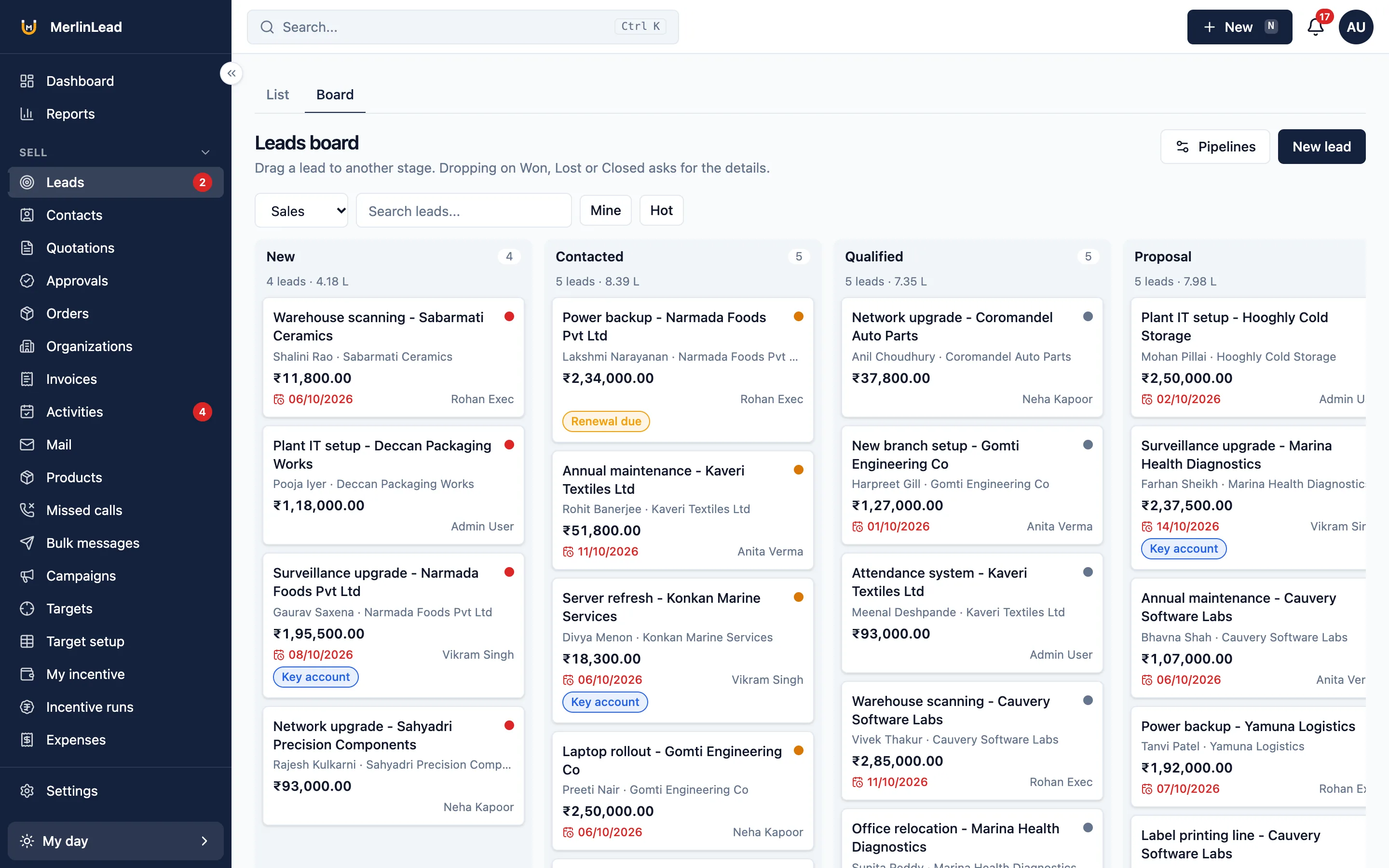
Customer list
People and organisations, each with a timeline.
- Several phone numbers and emails for each person
- A warning when you add someone who is already there
- Find the same customer twice and merge the two
Leads and pipelines
Run one or more sales pipelines. Drag cards on a board or work from a list.
- Close a lead as won, lost or closed, with a reason
- Pass a lead to a colleague, or change many at once
- Press N to add a lead fast
Follow-ups and calendar
Note what happened and set what happens next, on any record.
- Calls, meetings, visits, notes and tasks
- A calendar and reminders
- Late follow-ups show on the dashboard
Tags
Put coloured tags on any record. Filter any list by tag.
Products
A list of the goods and services you sell.
- Price, minimum price and HSN or SAC code
- Warranty and details for each item
- Mark items you track by serial number
Warehouses and stock
Know what you hold, where it is and what is already promised.
- Warehouses with shelves or bins
- Stock in hand, kept aside and free to sell
- Goods in, transfers, corrections and dispatch with serial numbers
Sales targets and incentives
Set targets and watch progress as deals are won.
- Targets for each person, group and branch
- Incentive plans and approved payouts
Call logging
Calls are noted on the customer record.
- Alerts for missed calls
- Calls from unknown numbers wait for you to match them
- Attach a recording file you choose yourself
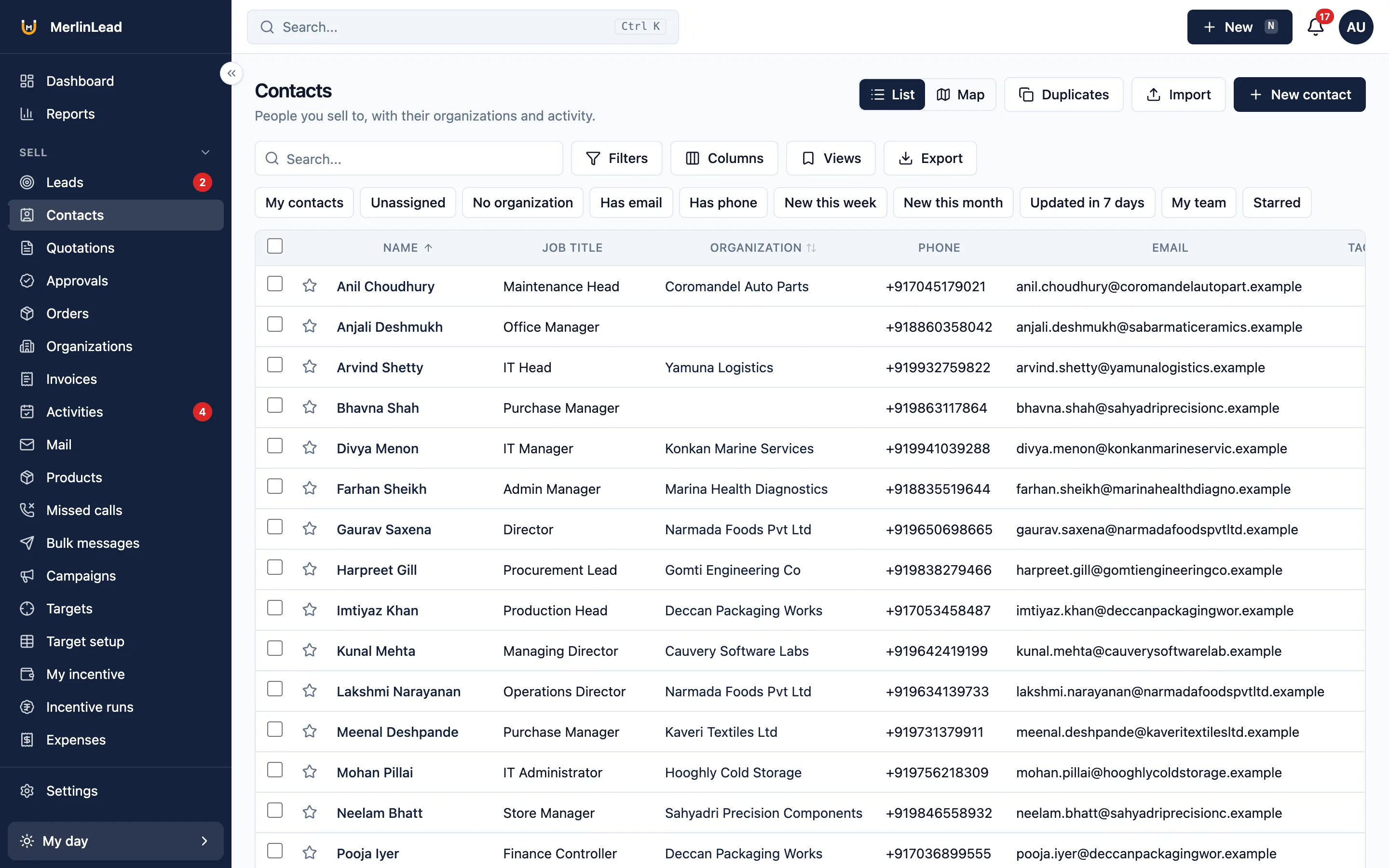
Send quotations with GST, then bill the customer
Totals and tax are worked out for you. Numbers follow your financial year, for example QT/2026-27/0001.
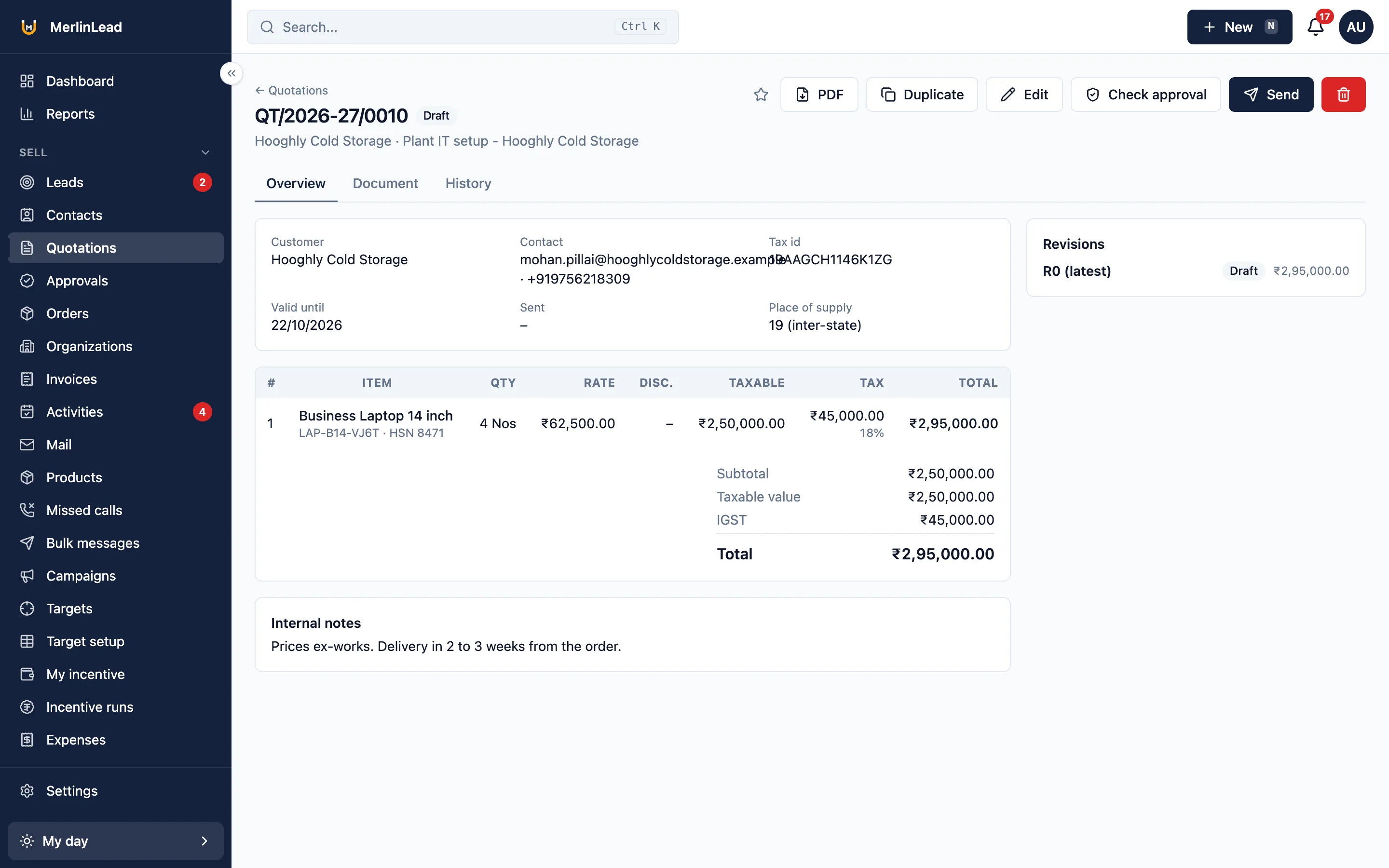
Quotations
Make a quotation, keep each revision and send it to the customer.
- Discounts on a line or on the whole quote
- Templates, terms and a live preview
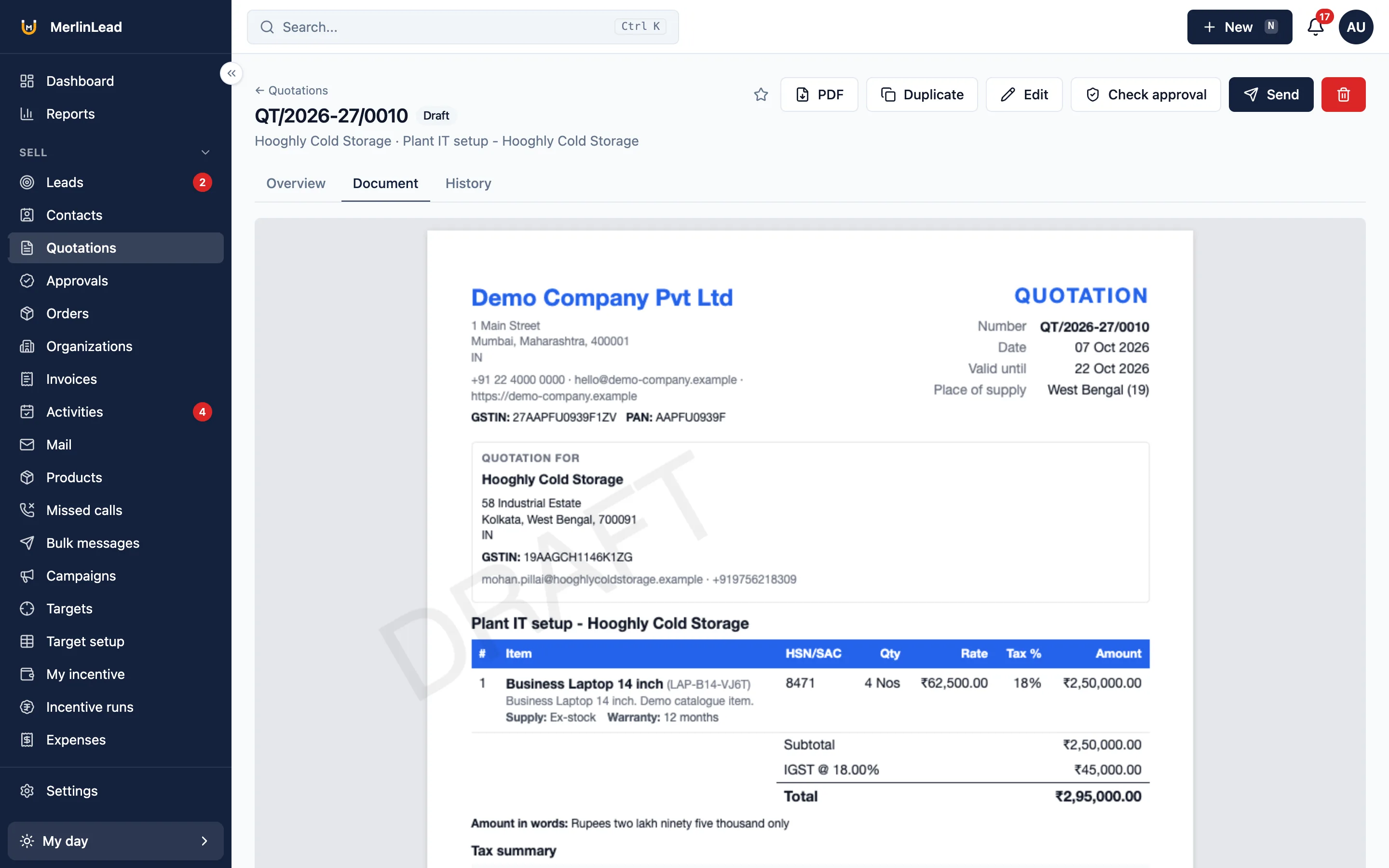
- PDF in English or Hindi, with your bank details
- An accepted quote keeps the stock aside and marks the lead won
GST and tax
Pick the tax that fits where you sell.
- CGST and SGST inside the state, IGST outside it
- GSTIN check and HSN or SAC codes
- Outside India: simple tax, VAT or no tax
Approvals
One list where requests wait for a manager.
- A quote below the minimum price waits for approval
- So does a discount over the limit for that role
- Nobody can approve their own request
Sales orders
Turn an accepted quotation into an order, or type one in.
- Large orders wait for approval
- Send goods in parts, with serial numbers
- Proof of delivery and a proforma PDF
Invoices
Make a tax invoice from a quotation, from an order or by hand.
- Numbered when you issue it
- Choose what prints on the PDF in Settings
Payment collection Off until you turn it on
Record money you receive and give a receipt.
- Cash, cheque, UPI, bank transfer, card, UPI QR and payment links
- Numbered receipts, money still due and how long it is overdue
- A daily cash handover
Expense claims
Staff claim costs. A manager approves them.
- Receipts and distance travelled
- Limits for each kind of expense
- One or two levels of approval, then payment in batches
Tally export file
Sales, purchase, receipt and payment entries as a Tally Prime file or CSV. Your accountant loads it into Tally.
Payment links through Razorpay or Cashfree work once you add your account details. MerlinLead does not file GST returns or make e-way bills.
Look after customers after the sale
A won deal adds the items the customer bought. Warranty, visits, contracts and tickets stay on the same record.
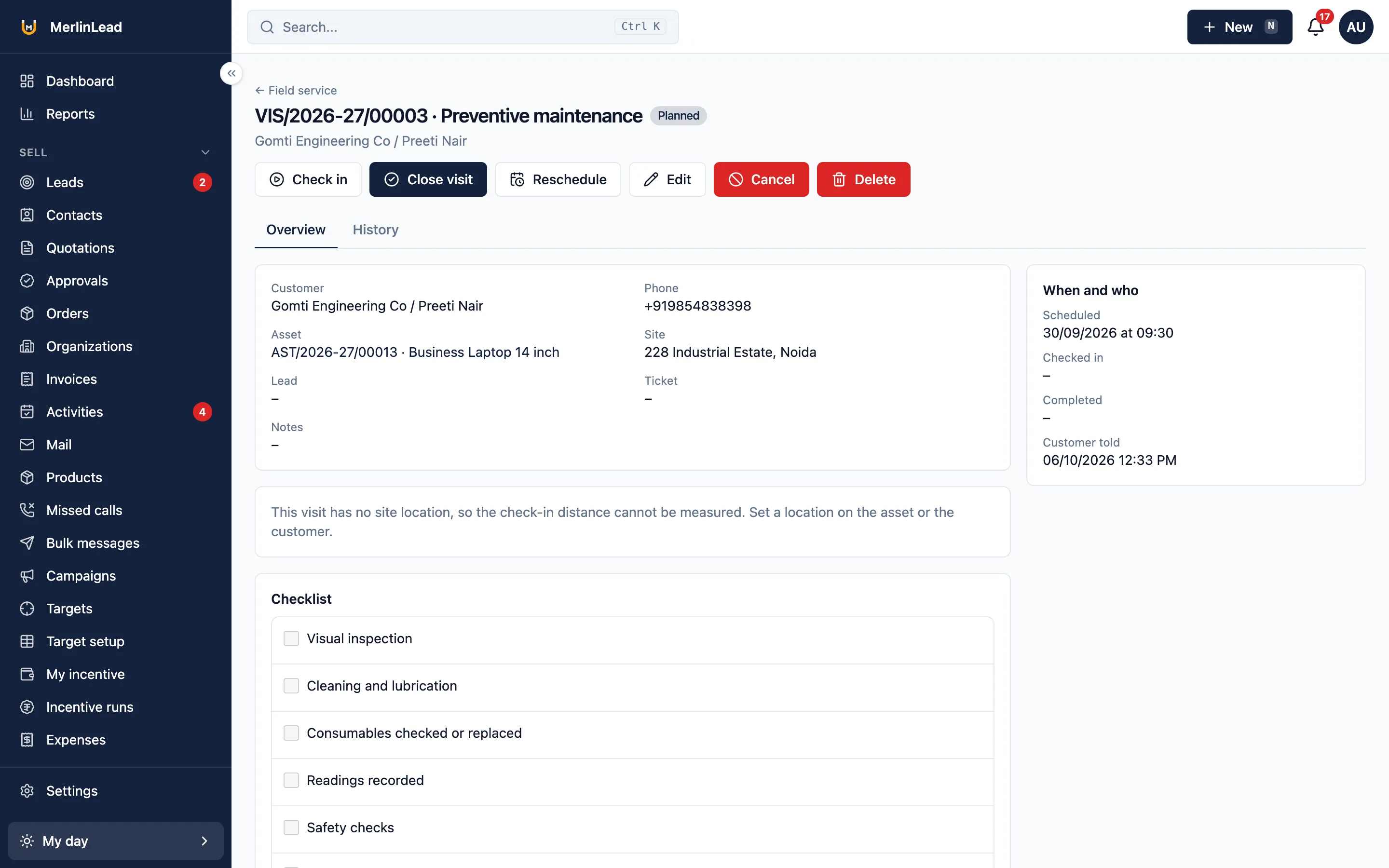
Customer items and warranty
Each item a customer owns, one per serial number.
- Added when a lead is won, waiting for installation
- Warranty by date, by use, or whichever ends first
- Service due dates for each item
Service visits
Book a visit and close it on the phone.
- Installation, routine service, breakdown and survey visits
- Check in with the phone's location, then checklist, parts and photos
- Close with the customer's signature or a one-time code
- Closing an installation starts the warranty
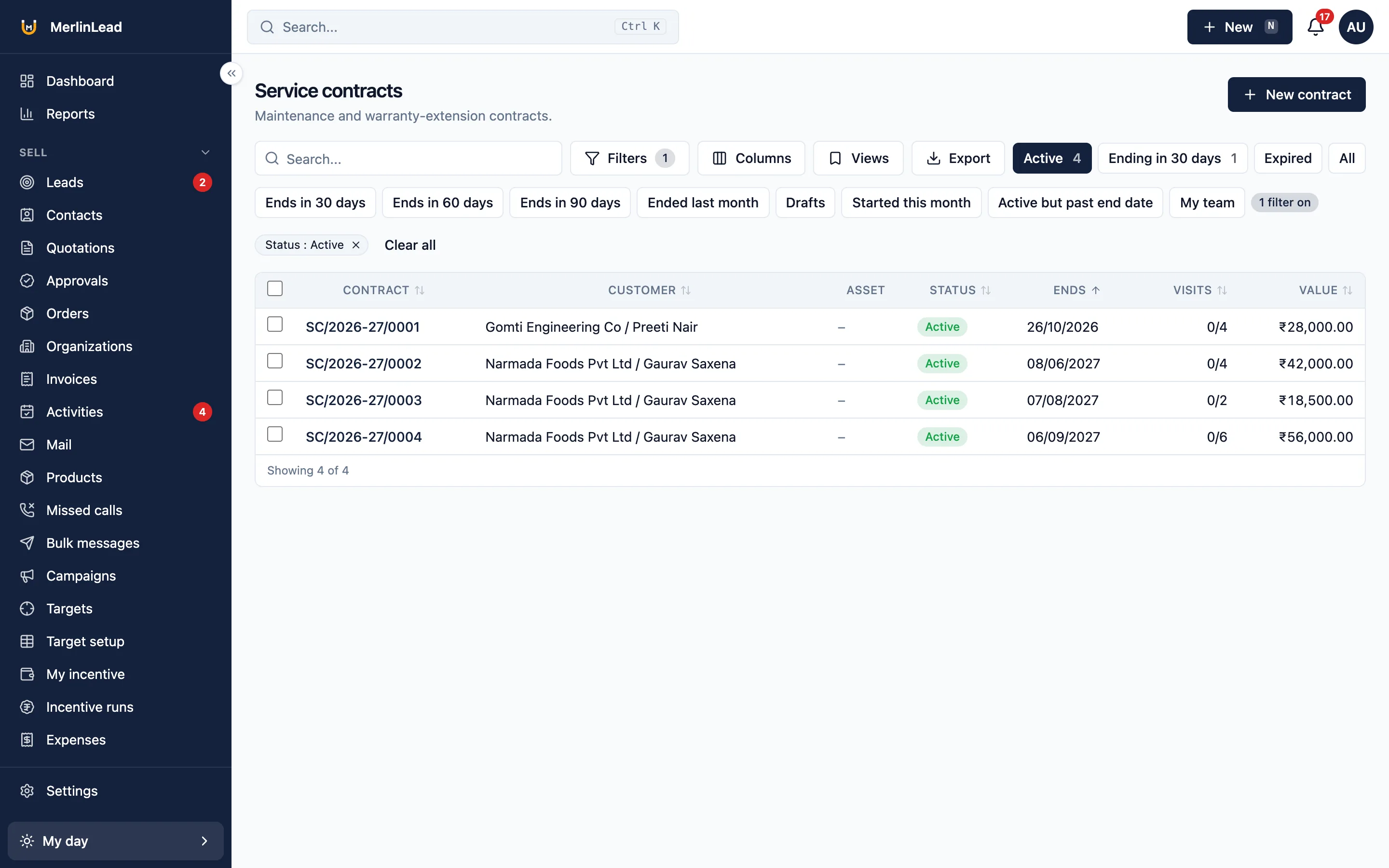
Service contracts
Maintenance contracts and extended warranty for customer items.
- Counts the visits used
- Renew in one click
- A reminder 30 days before a contract ends
Support tickets
Every complaint gets a ticket and a response-time limit.
- Categories, priorities and a board
- A flag when the time limit is missed
- Reply to the customer and send a short feedback link
Field staff attendance and location
Punch in and out with a selfie and location.
- Location only during the shift, with the person's consent
- A team map, the day's route and an attendance register
Work with partners who bring you business
Keep resellers, distributors and referrers in one list. See what each one brought in.
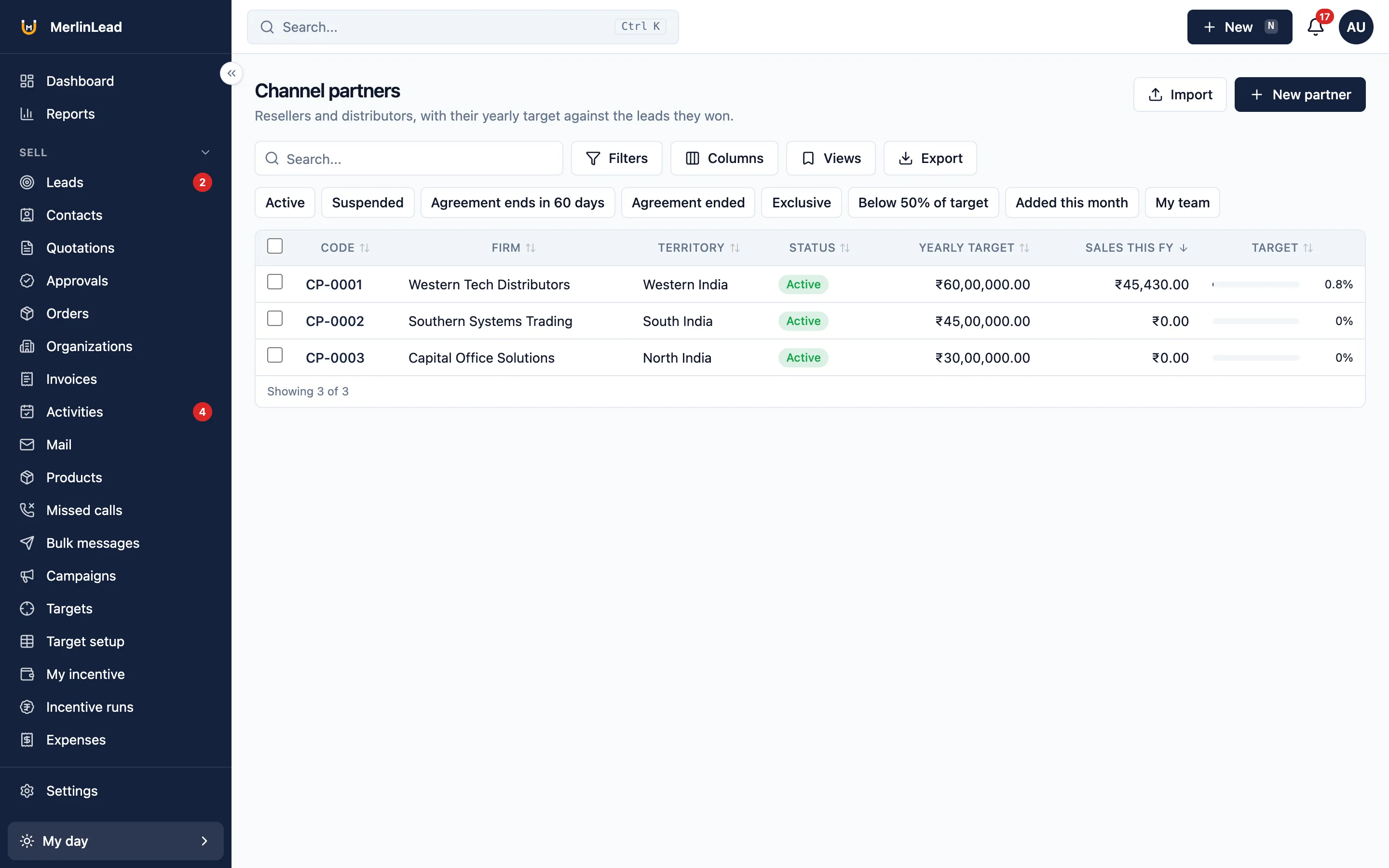
Channel partners
Resellers and distributors, each with their own terms.
- Area, discount and credit limit
- Yearly target and progress
Referral partners and commission
People who send you leads and earn when a lead is won.
- Commission as a percent or a fixed amount
- Payouts to each partner
- A sign-up page with a phone code; an admin approves each one
Let the routine work happen by itself
Set a rule once and it does the repeat work. Enquiries from forms and lead websites land in the same list.
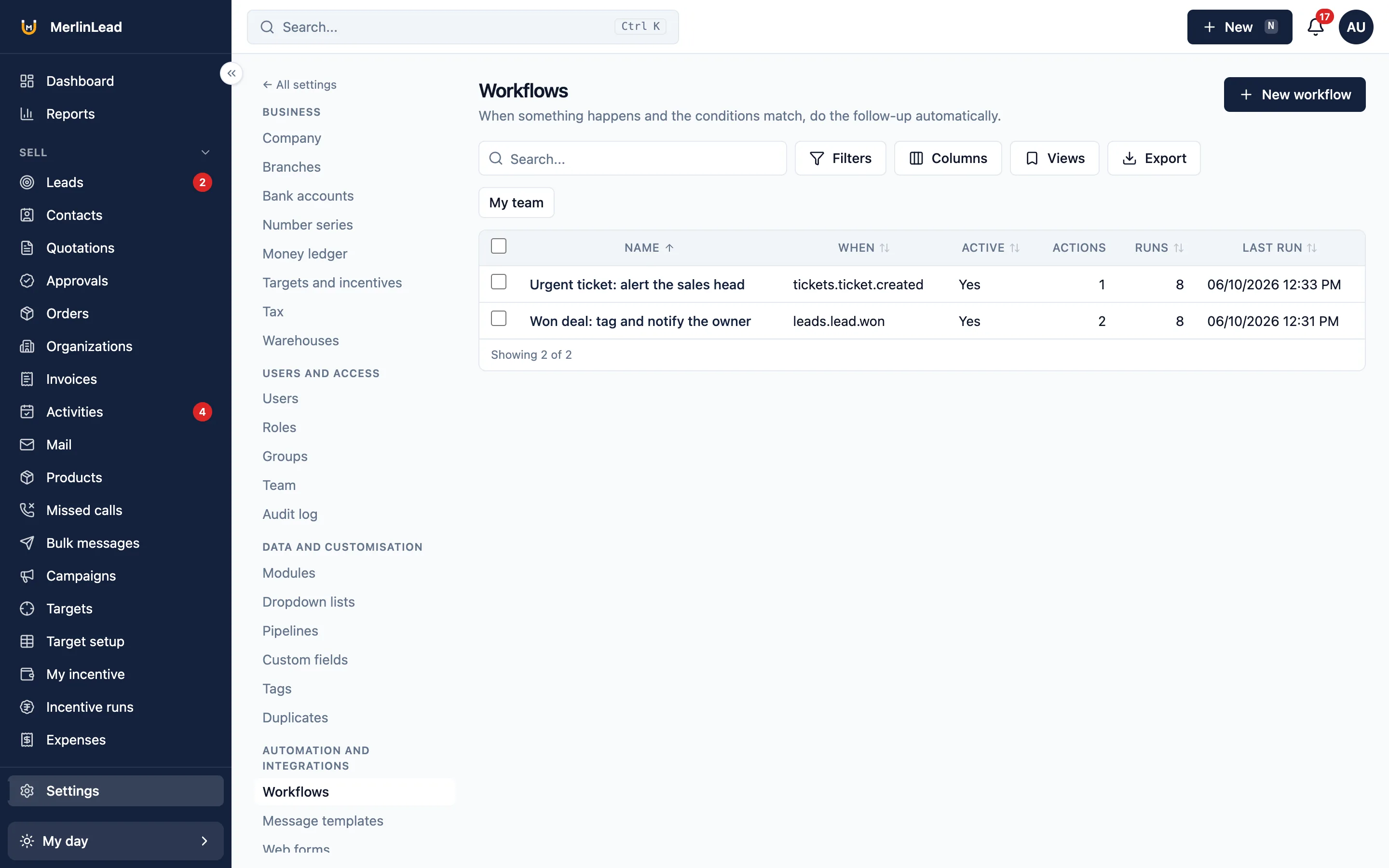
Automatic rules
When something happens and your conditions match, the steps run for you.
- Ten kinds of step: change a field, assign, tag, add a task, send a message, wait and more
- Reminders when a lead has no activity, a follow-up is late or a quote is about to expire
Send updates to other software
Tell your other software when something changes. Each message goes over a secure link and is tried again if it fails.
Website enquiry forms
Put an enquiry form on your website, or share a link to it.
- Adds the person and, if you choose, a lead
- Simple spam checks
- Notes which advert the enquiry came from
Enquiries from any lead website
Any lead website that can send to a secure link can drop enquiries into your list.
IndiaMART leads
Bring IndiaMART buyer enquiries in as leads, once you add your account details.
- Shared in turn by city or product
- Late-evening enquiries wait for the morning
TradeIndia leads
The same for TradeIndia enquiries, once you add your account details.
JustDial leads
Forward your JustDial lead emails. Each one becomes an enquiry.
Google and Microsoft calendar
Meetings and visits show on each person's own calendar, once you connect it.
Tickets from device alerts
A machine you sold can report a fault. A ticket opens for the item with that serial number.
Writing help (AI assist)
Uses simple built-in rules, or your own AI account if you connect one. A person always checks and sends.
- Make a lead from pasted text or a file
- Draft a reply, sum up a record or tidy notes
- Suggest the next step
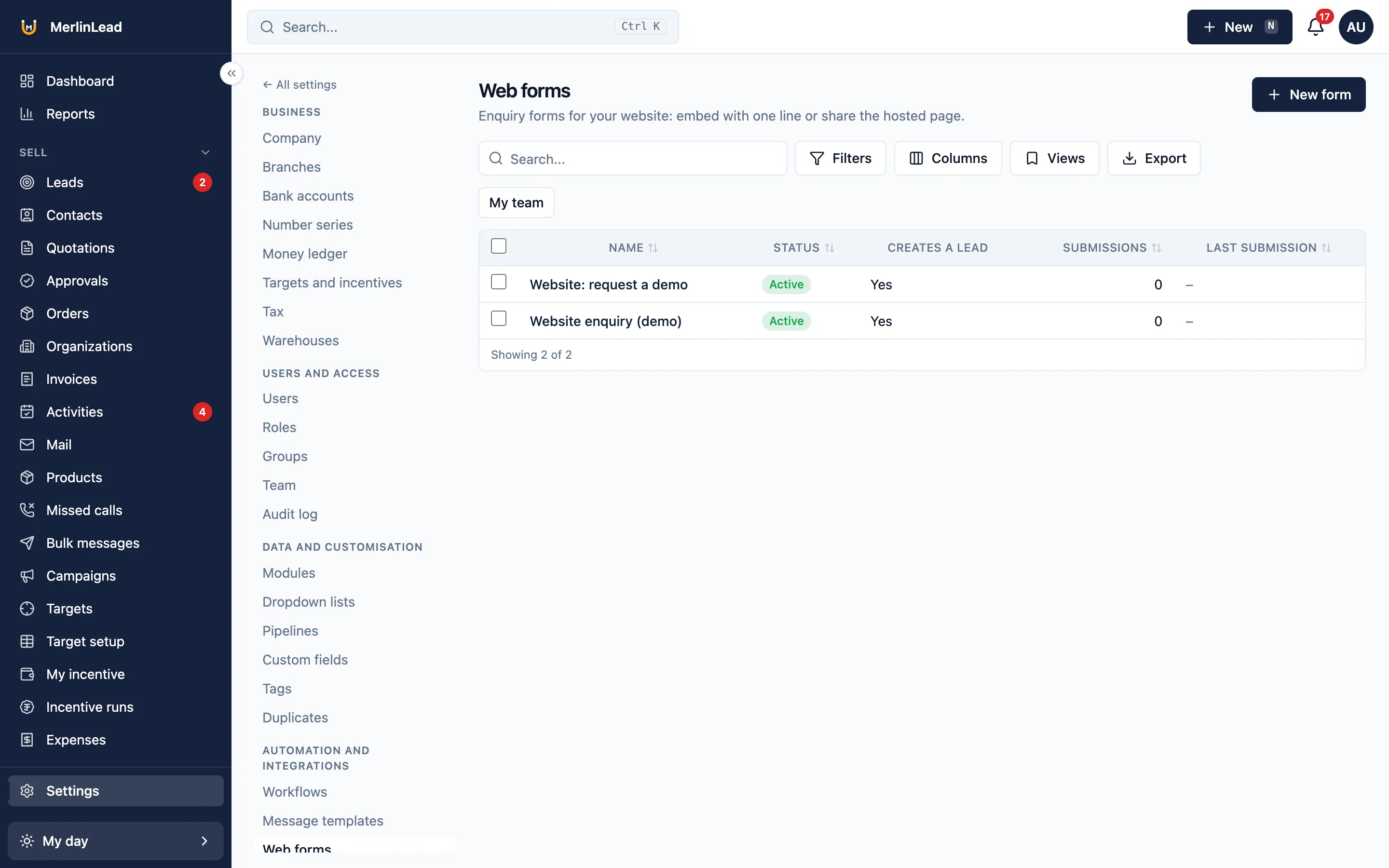
IndiaMART, TradeIndia, Google and Microsoft calendar work once you add your account details in Settings. Until then you see sample data. Writing help gives simple answers until you connect your own AI account.
Send email, WhatsApp and SMS from the CRM
Write a message once. Send it to one person or a list.
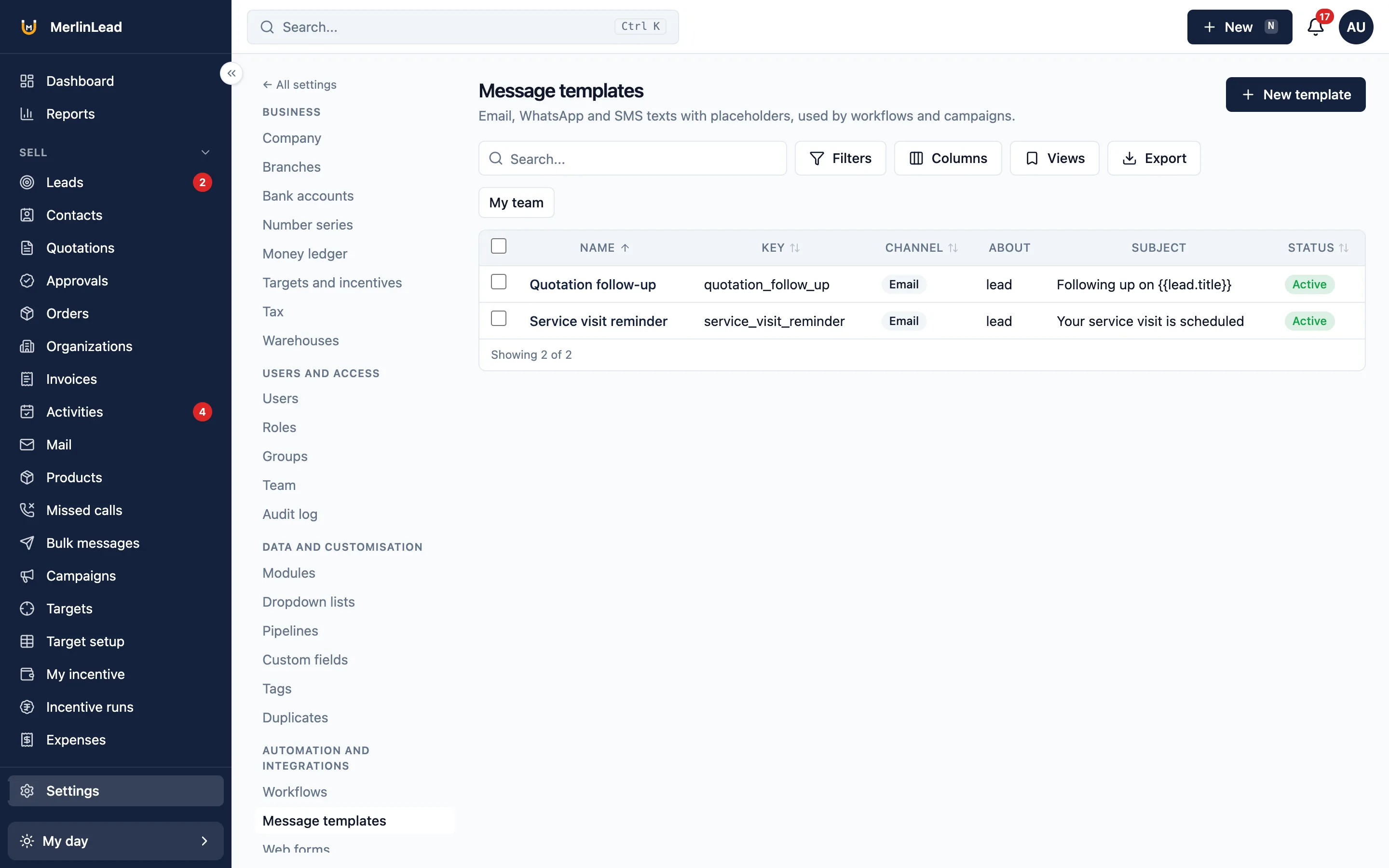
Message templates
Ready-made email, WhatsApp and SMS messages. Names, amounts and dates fill in by themselves, in each language.
Email campaigns
Email a saved list of customers on a set day.
- See who opened and who clicked
- An unsubscribe link and a do-not-send list
Email inbox
Read and answer customer email inside the CRM. Each mail is matched to the right person or lead.
Email sending
Email goes out through your own mail account.
WhatsApp Business
Chat with customers through your own WhatsApp Business account.
- Templates, opt-in and opt-out, business hours
- Simple WhatsApp links until you add your account
SMS with DLT
Send SMS through your own SMS company. DLT ids and approved texts are checked, with a daily limit.
App notifications
Alerts on the phone, with Approve and Reject buttons, quiet hours and a daily summary.
Notification settings and daily summary
One screen to set up email, SMS, WhatsApp and app alerts. The owner gets a daily summary email.
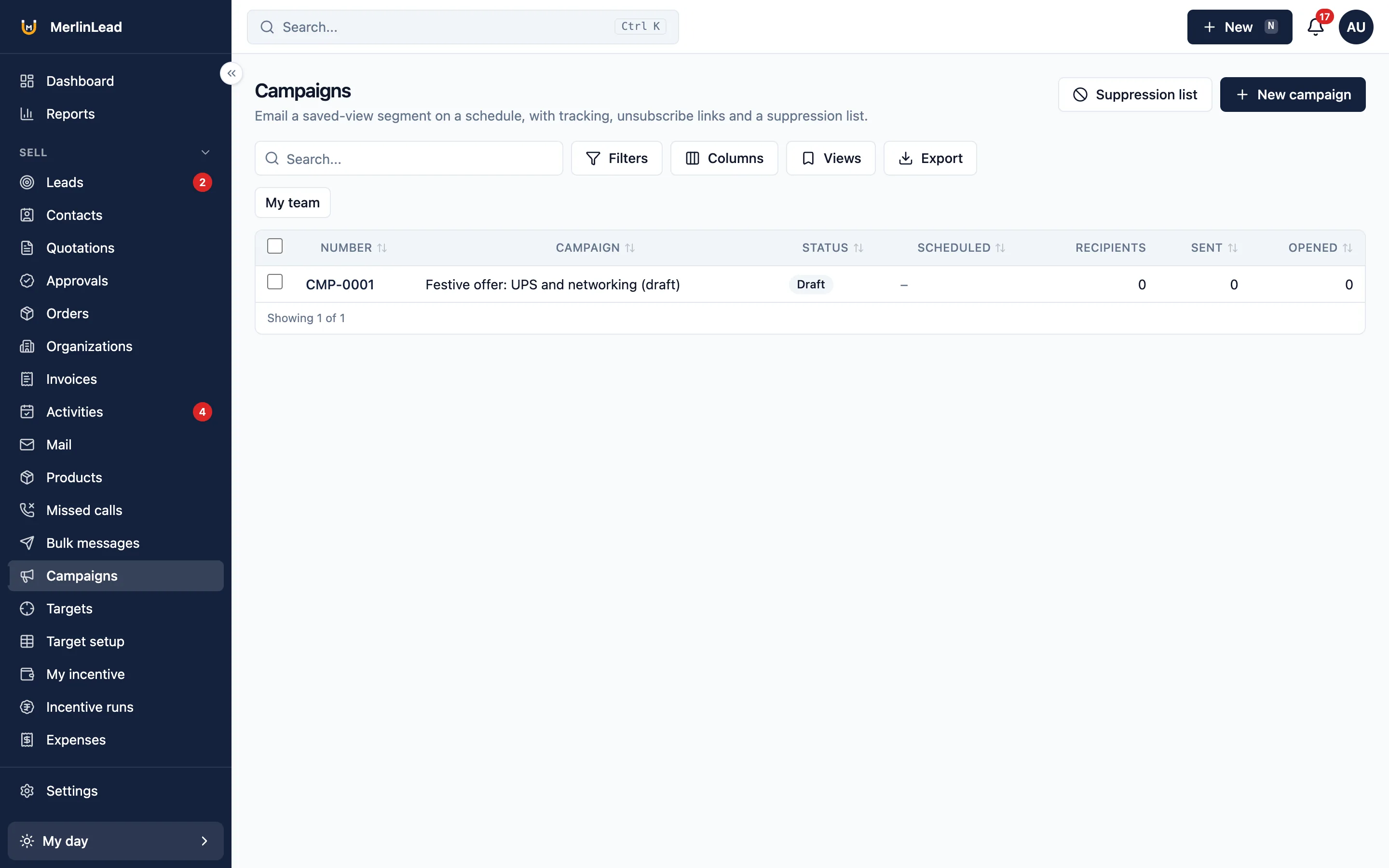
Email, WhatsApp, SMS and app notifications work once you add your account details in Settings. Until then nothing is sent.
See how your sales team is doing
Click any number to open the list behind it.
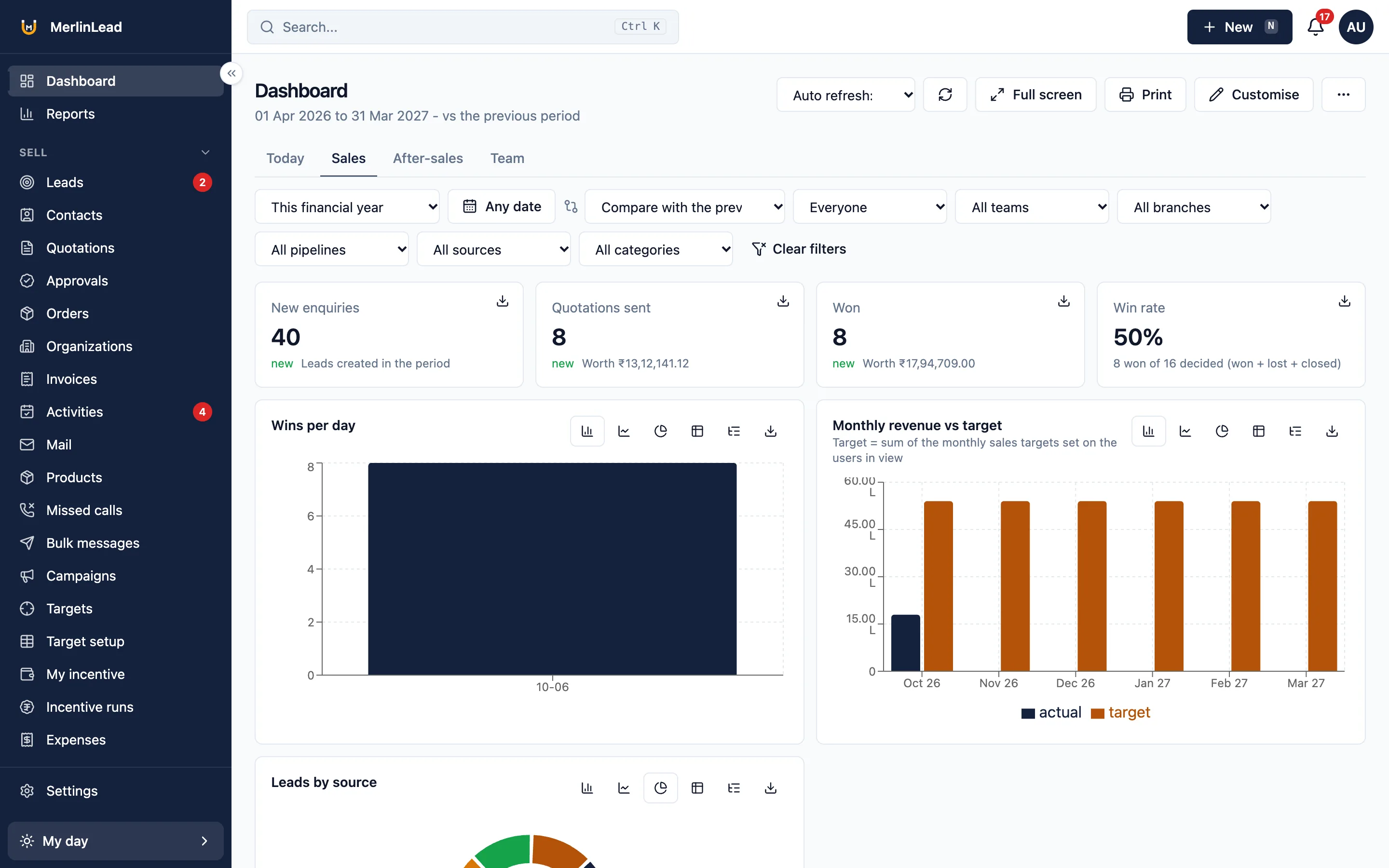
Dashboards
Today, Sales, After-sales and Team, plus dashboards you build yourself.
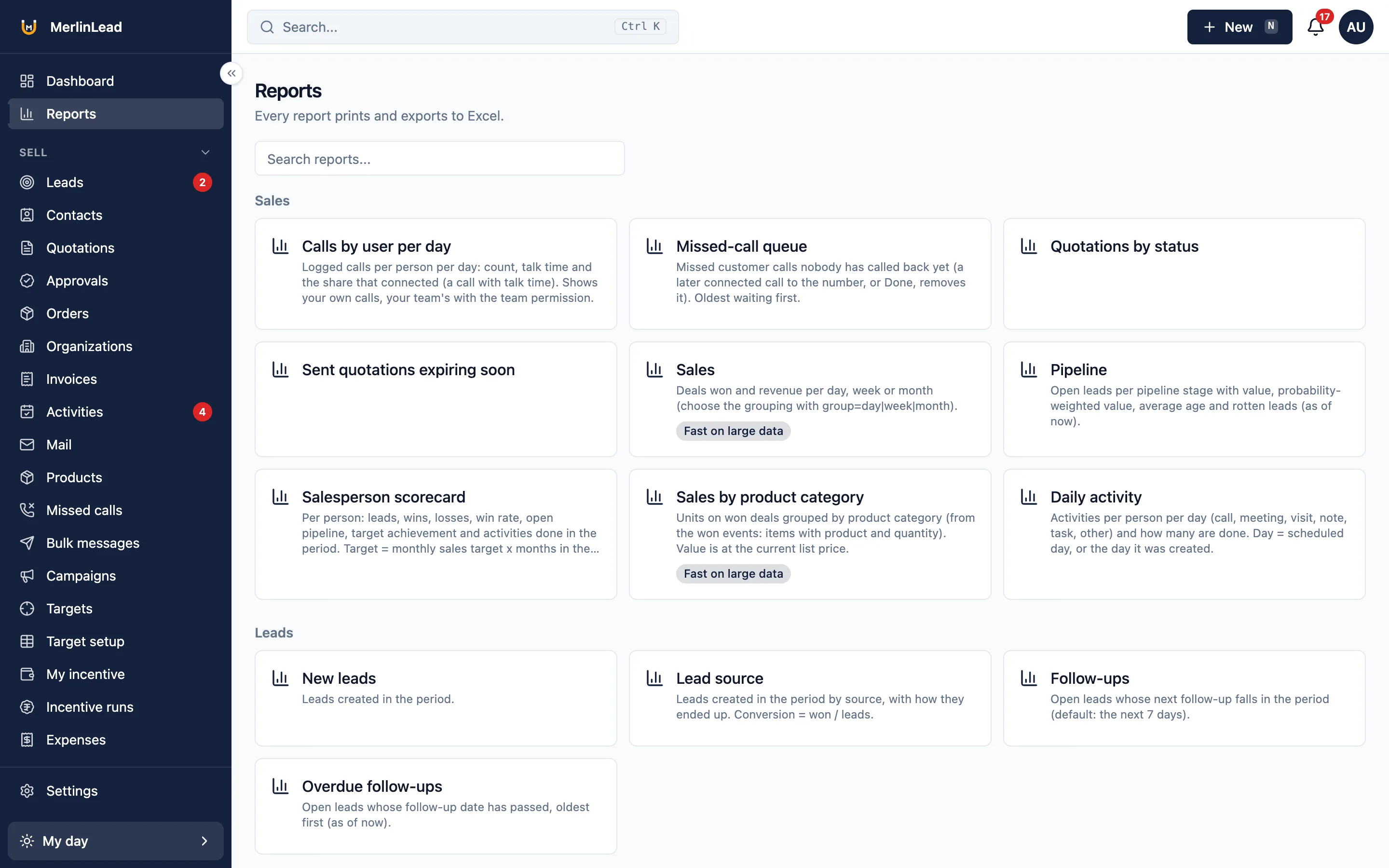
24 ready reports
Print them or export to Excel.
- Sales summary and each salesperson's results
- Lead sources and late follow-ups
- Warranty ending and contracts due for renewal
Your own name, logo and settings
These come with every company. Use your own name and colours, and decide who sees what.
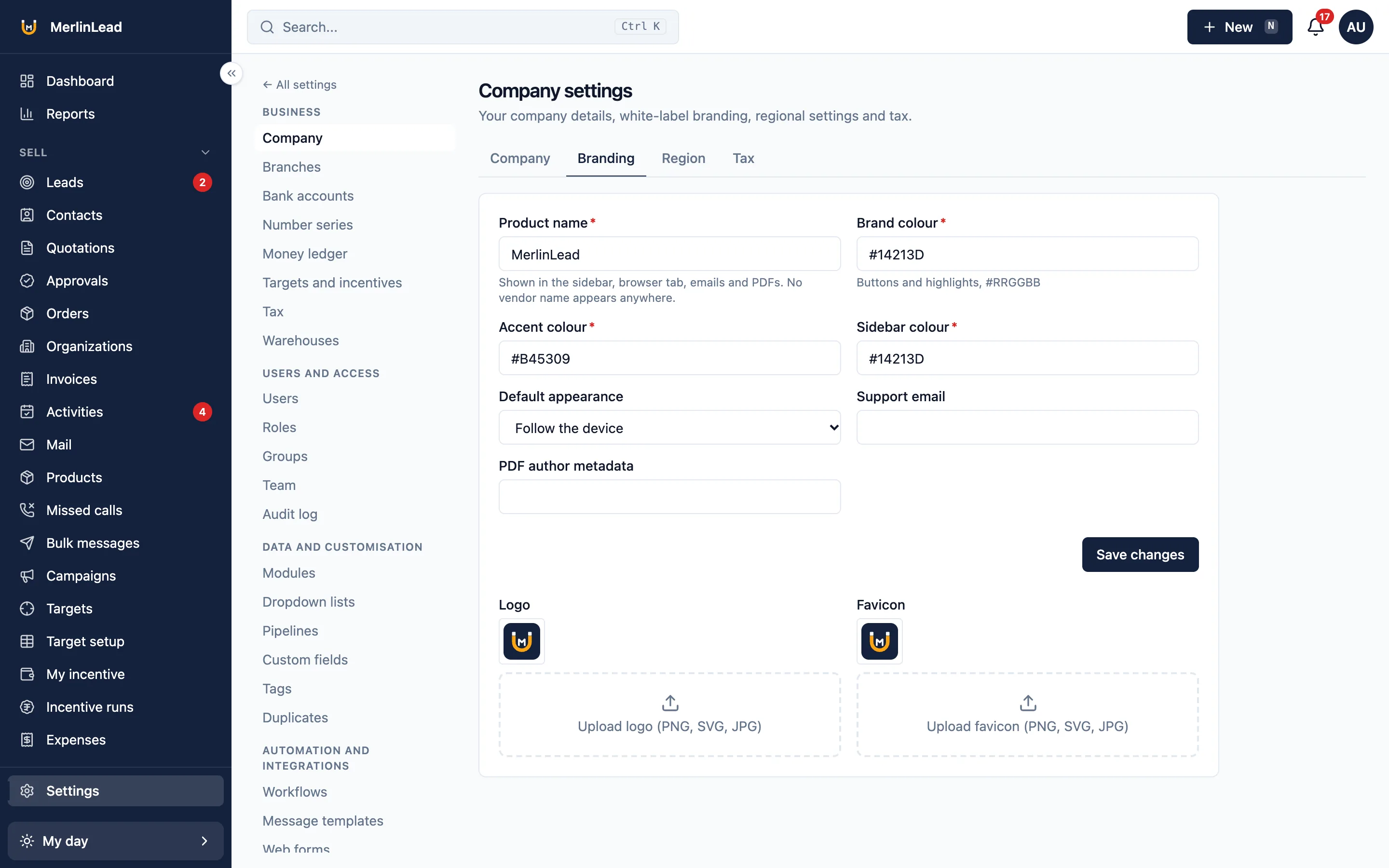
Your name, logo and colours
Your name, logo, browser icon, colours and support email. No vendor name shows.
Features on or off
Switch each feature on or off for your company.
Roles and who sees which records
Tick what each role may do. Choose own, group, branch or all records.
One-time code sign-in
Ask for a one-time code from an app, if you want it. Sign out lost devices.
Change history (audit log)
See who changed what, with the old and new value.
Undo and restore
Undo most changes within 30 seconds. An admin can bring back deleted records.
Extra fields (15 types)
Add your own fields to any record, and edit the drop-down lists.
Number series
Your own numbering for each document, by financial year.
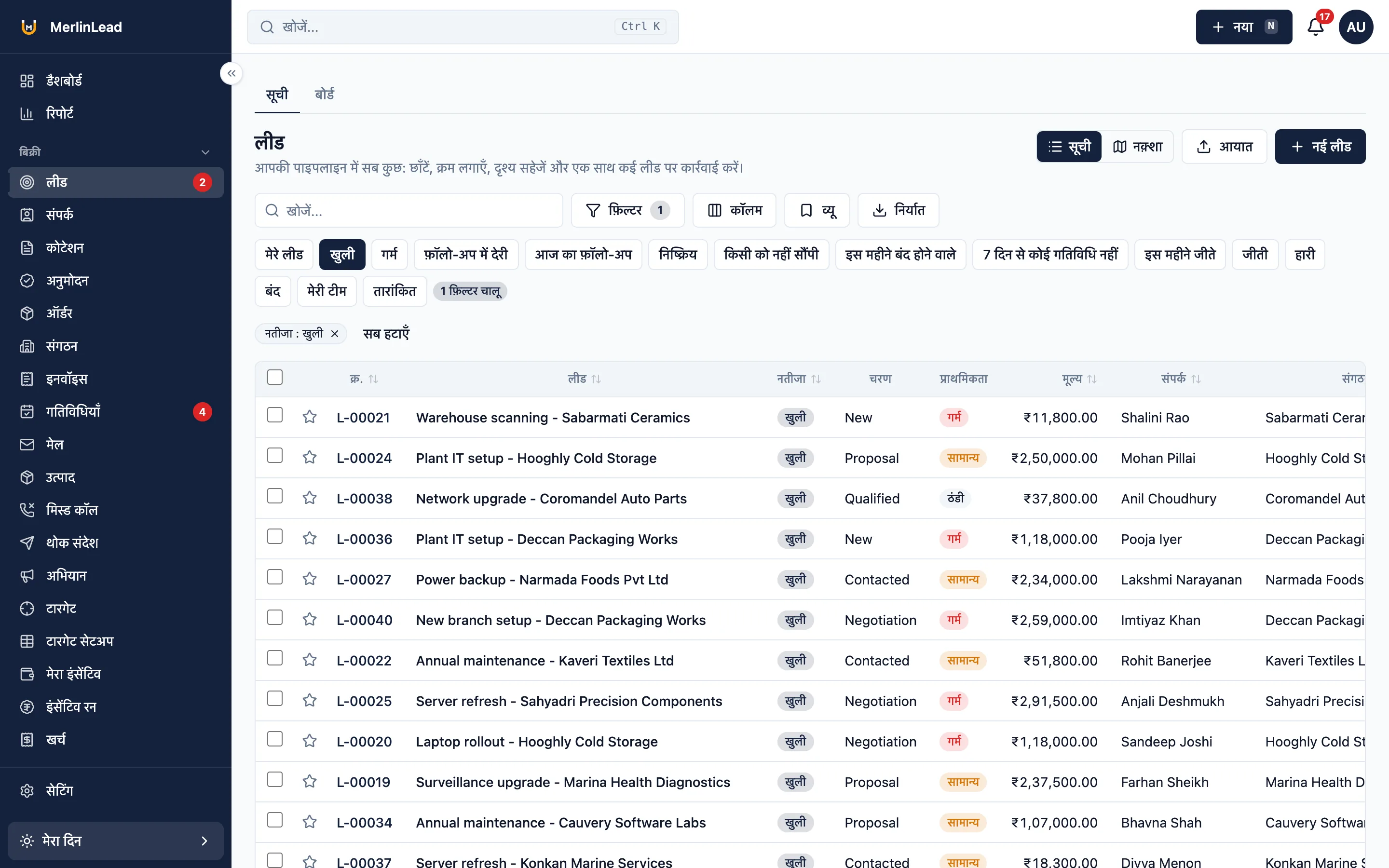
English and Hindi
Each person picks a language. Quotation PDFs print in the customer's language.
Import and export
Bring in leads and contacts from Excel or CSV. Export any list.
Search everything
Press Ctrl+K to find a lead, name, phone or quotation number.
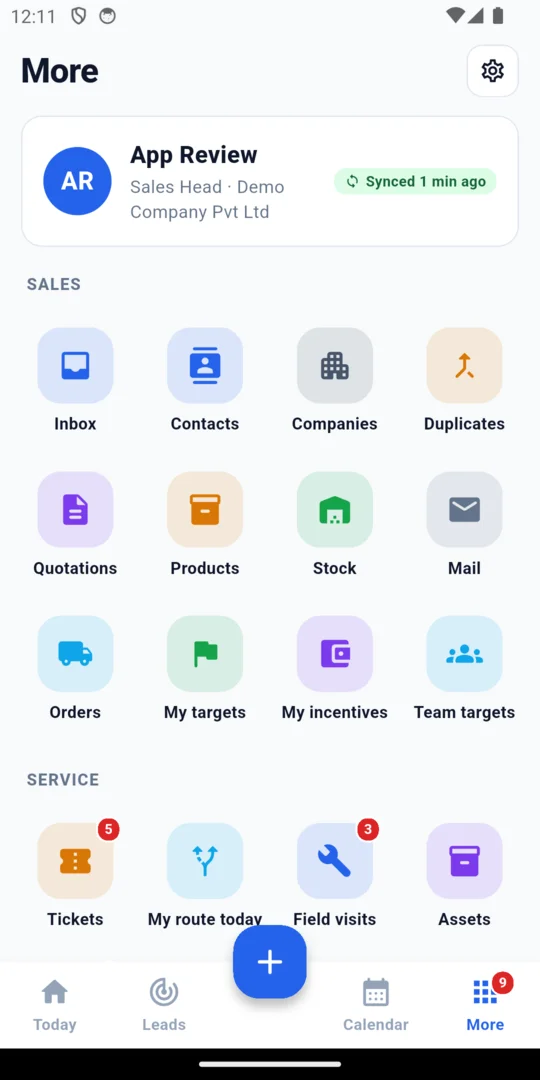
The mobile CRM app for your team
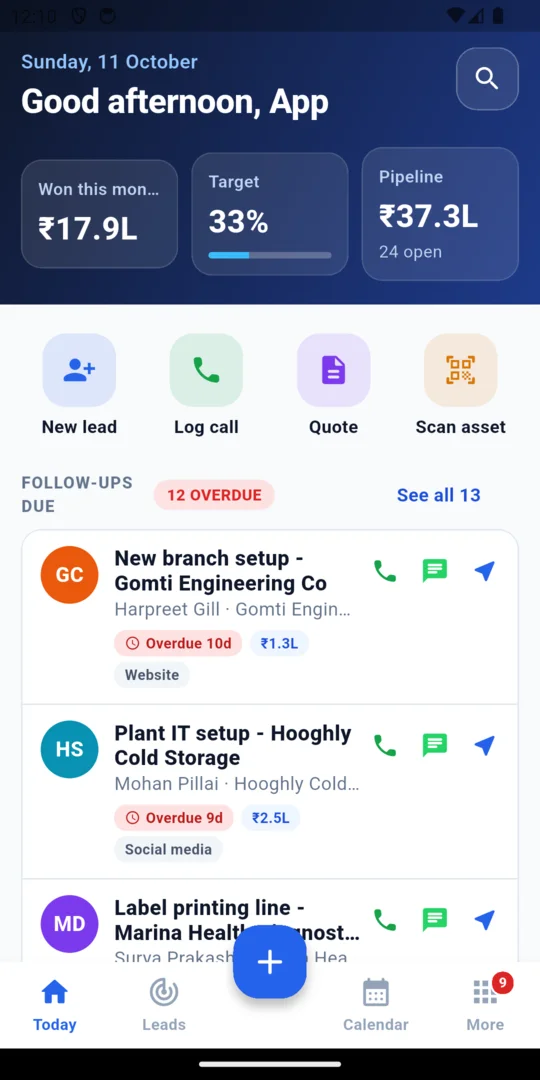
Your name and logo, on iPhone and Android phones.
- iPhone and Android phones, in English or Hindi
- Today screen with follow-ups and visits
- Leads and follow-ups on a list or a board
- Quotations with GST on the phone
- Service visits with the customer's signature
- Visiting-card scan to start a lead
- Attendance and expenses
- Keeps working on a poor connection and sends changes when you are back online
Already have an account?
Sign in to MerlinLead at app.merlinlead.com.